How to Enable WooCommerce Multi-Currency (Step-by-Step Guide)

Share this content
Copy Link
Share



Design WooCommerce Stores That Convert
-
100+ Widgets
-
15+ Modules
-
150+ Templates
-
At Your Service
Follow us on:


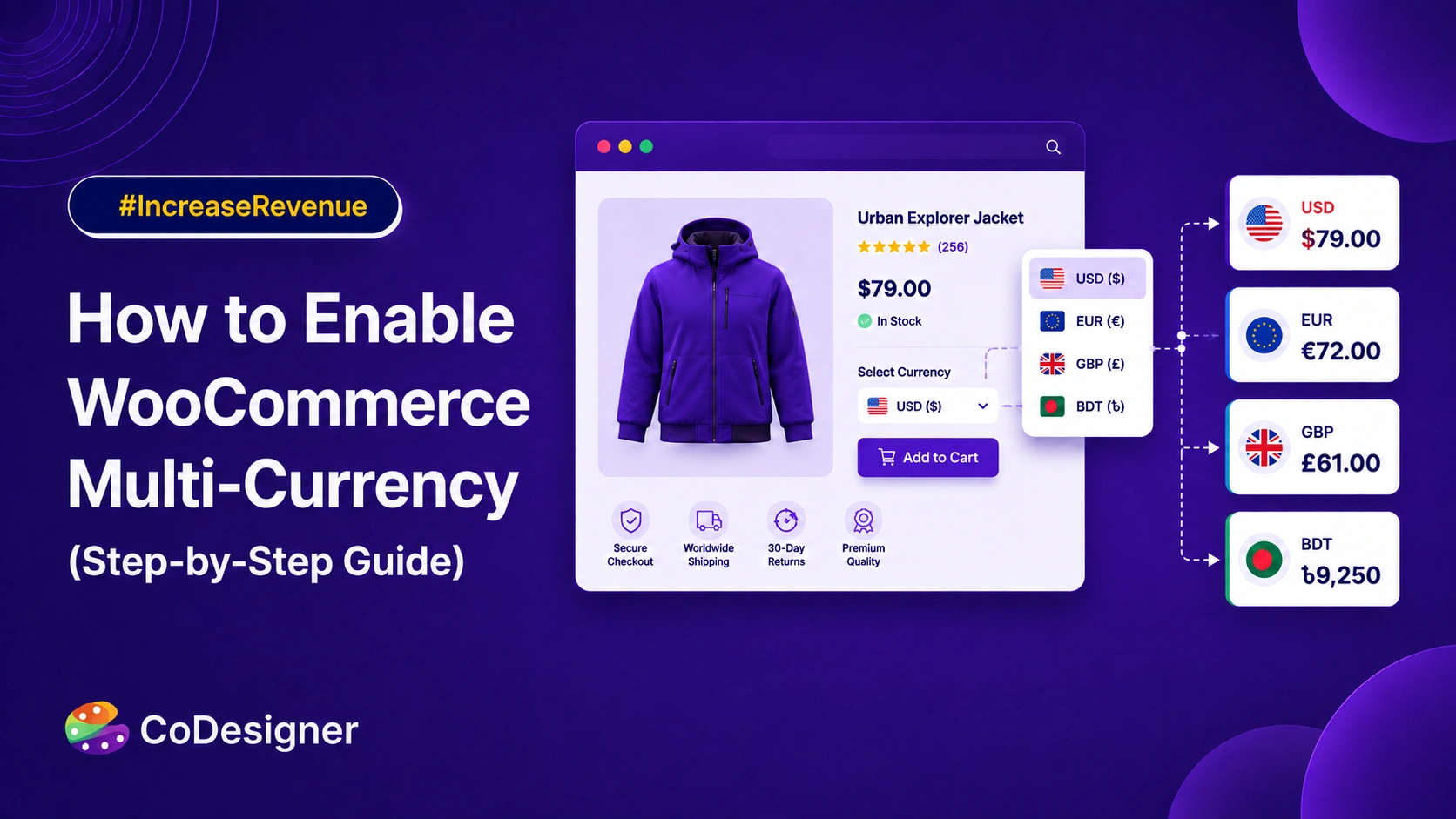
Selling to shoppers outside your home market sounds simple until they open your cart and see a price tag in a currency they don’t use every day. That moment of confusion costs you sales.
WooCommerce multi-currency is not built in. WooCommerce lets you set one store currency, and that is it. So if you are getting international traffic and still showing everyone the same USD or GBP price, you are leaving money on the table.
This guide walks through what “enabling multi-currency” actually means, what you need before you touch a plugin setting, and exactly how to turn it on.
Quick Overview
Before getting into the setup details, here’s a quick look at what you need to add multi-currency support to your WooCommerce store:
| Aspect | Details |
| What it does | Shows prices (and sometimes checkout) in the shopper’s local currency |
| What you need | A multi-currency plugin, a payment gateway that supports your target currencies, and cache compatibility |
| Setup time | 15-30 minutes for basic display, longer if you want full checkout currency support |
| Free path available | Yes, most tools offer a limited free tier (usually capped at two currencies) |
Why WooCommerce Multi-Currency Is Important
If you sell across borders, the currency on your price tag is part of the buying decision. A familiar currency removes a calculation, removes a doubt, and shortens the distance between the product page and the checkout button.
Here are two key reasons multi-currency support can matter for a WooCommerce store.
1. Customers Don’t Want to Do Currency Math
Cart abandonment is already a major challenge for online stores. Baymard Institute’s ongoing research puts the average abandonment rate at around 70%. For international shoppers, unfamiliar currencies can add another layer of friction.

When customers have to calculate prices themselves, check exchange rates, or worry about unexpected conversion fees, buying becomes less straightforward. Even if they like the product, that extra uncertainty can make them hesitate or leave before completing the purchase.
For stores targeting customers in multiple countries, multi-currency pricing removes one of those unnecessary barriers. Shoppers can see prices in a currency they already understand, making the path from product page to checkout simpler and more familiar.
2. International Shoppers Expect Local Prices
International shoppers increasingly expect a localized buying experience, not just a website that ships to their country. That includes familiar payment options, clear shipping information, and prices displayed in their local currency.

Seeing prices in an unfamiliar currency can create unnecessary questions:
- How much will this actually cost?
- Will my bank charge a conversion fee?
- Is the exchange rate accurate?
- Will the final amount at checkout be different?
If your store attracts significant traffic from other countries, this is worth addressing.
You can check your analytics by country first. If international visitors make up a meaningful share of your audience, showing prices in their preferred currencies can make your store easier to understand and more comfortable to buy from.
Multi-currency sounds simple: show customers prices in the currency they use. But in WooCommerce, there’s an important difference between showing a converted price and actually charging customers in that currency.
Understanding this difference will help you choose the right setup for your store.
Currency Display vs. Currency Checkout
A multi-currency plugin can handle currencies in two main ways:
- Currency display: The plugin converts your product prices and shows them in the shopper’s preferred currency. However, the actual payment may still be processed in your store’s default currency. This is easier to set up, but the amount the customer is charged may be different from the price they saw.
- Currency checkout: The customer can pay in the same currency they selected while browsing. The payment gateway processes the transaction in that currency, giving the customer a clearer and more consistent checkout experience.
For example, your store might normally use USD. A customer from the UK could see a product priced at £80. If your setup only supports currency display, they might still be charged in USD at checkout. With full currency checkout support, the payment can be processed in GBP instead.
The key takeaway: If you only want to help customers understand your prices, currency display may be enough. If you want customers to see and pay in the same currency, you need a multi-currency setup that supports checkout in the selected currency.
Where CoDesigner sits: the Currency Switcher module handles currency display, converting and showing prices in the shopper’s selected currency across your Elementor-built pages. If you also need the payment itself settled in that currency, that comes down to your payment gateway’s multi-currency support.
Why WooCommerce Needs a Plugin for Multi-Currency?
WooCommerce lets you set a default currency for your store, but it doesn’t provide built-in tools for switching between multiple currencies throughout the shopping and checkout process.
That’s why you need an additional solution for multi-currency functionality. Depending on your needs, this could be a dedicated currency-switching plugin, a WooCommerce extension, or a broader internationalization tool.
The important thing is to check what the solution actually supports. Some tools only change the currency displayed on your store, while others can also handle exchange rates, checkout currencies, payment gateways, and currency-specific pricing.
So before choosing a plugin, decide whether you simply want to display local prices or let customers complete their payment in their preferred currency. That choice will determine what kind of setup your WooCommerce store needs.
If you already built your store with Elementor, the CoDesigner Currency Switcher is the shortest path, because the switcher is a native Elementor widget rather than a second plugin bolted onto your layout.
What You Need Before You Start
Before adding multi-currency support to your WooCommerce store, check a few important things first. These checks can save you from compatibility issues and unexpected checkout problems later.
Compatibility Checklist
- WooCommerce & HPOS: Make sure your multi-currency plugin supports your current WooCommerce setup, including High-Performance Order Storage (HPOS) if you use it.
- Caching: Check whether your caching setup is compatible with currency switching. Cached pages can sometimes show the wrong currency or outdated prices to shoppers.
- Payment gateway: Confirm that your payment gateway supports the currencies you want to offer. Showing converted prices is easier, but accepting payments in those currencies requires gateway support.
Quick tip: Check the plugin and payment gateway documentation before installing anything. It’s much easier to confirm compatibility upfront than troubleshoot currency or checkout issues later.
Enable Multi-Currency with CoDesigner
If you’re already building your store with Elementor, CoDesigner includes a currency switcher module built directly into the page builder, so you’re not stacking a separate plugin on top of your existing workflow.
Setting Up the Currency Switcher Module
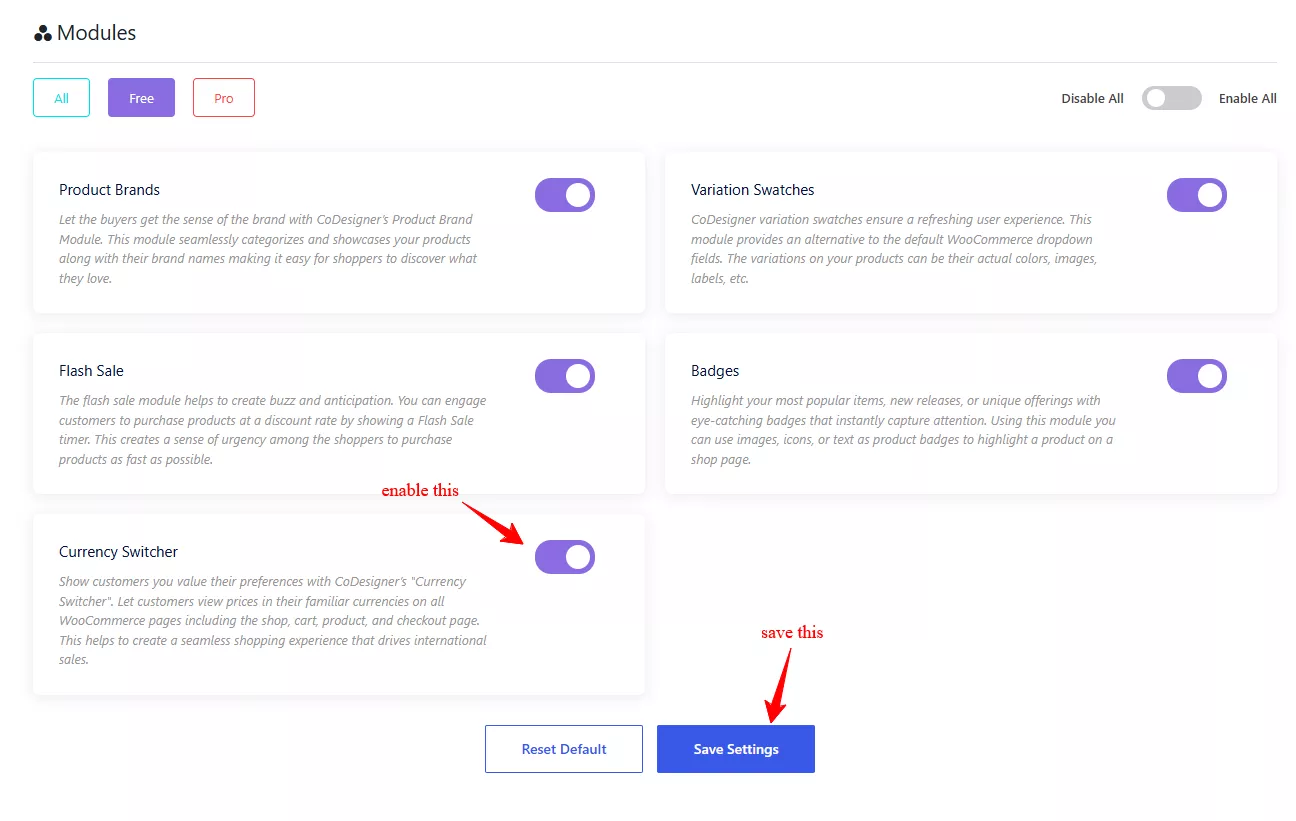
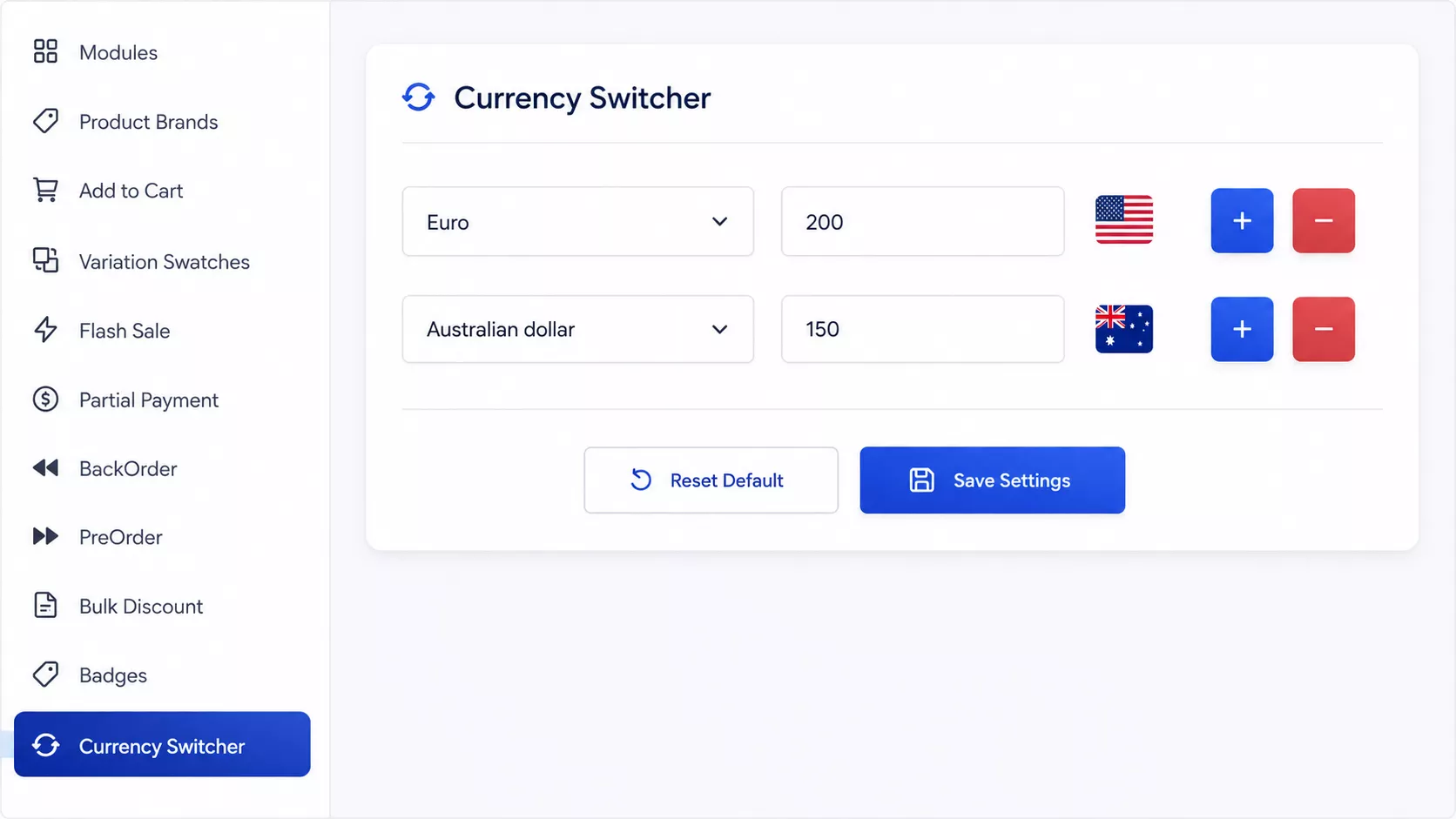
From your WordPress dashboard, activate the Currency Switcher module inside CoDesigner’s module list.
Set your base currency and add the additional currencies you want to display.
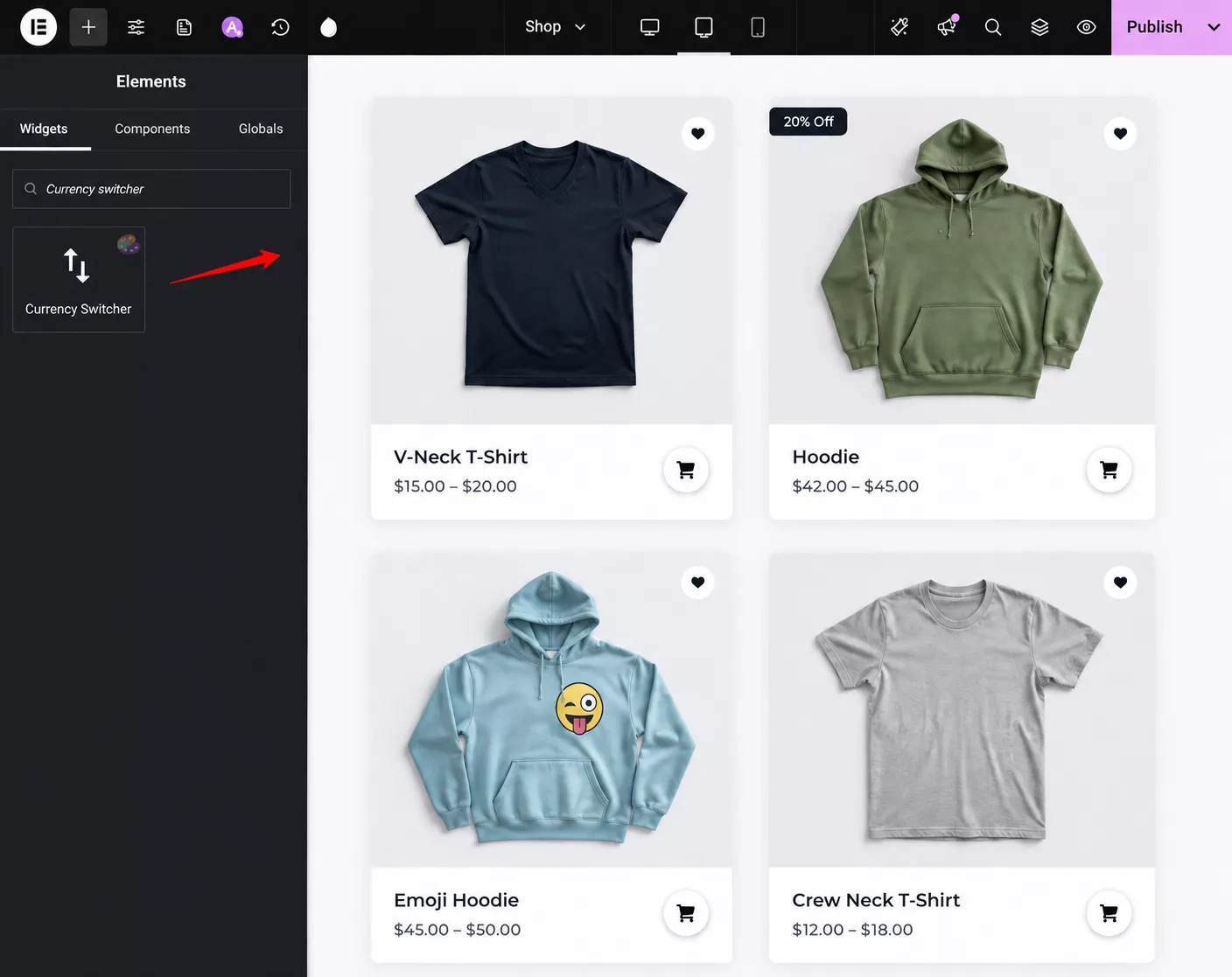
Create a new page and open it in Elementor. Next, search for the Currency Switcher in the search bar.
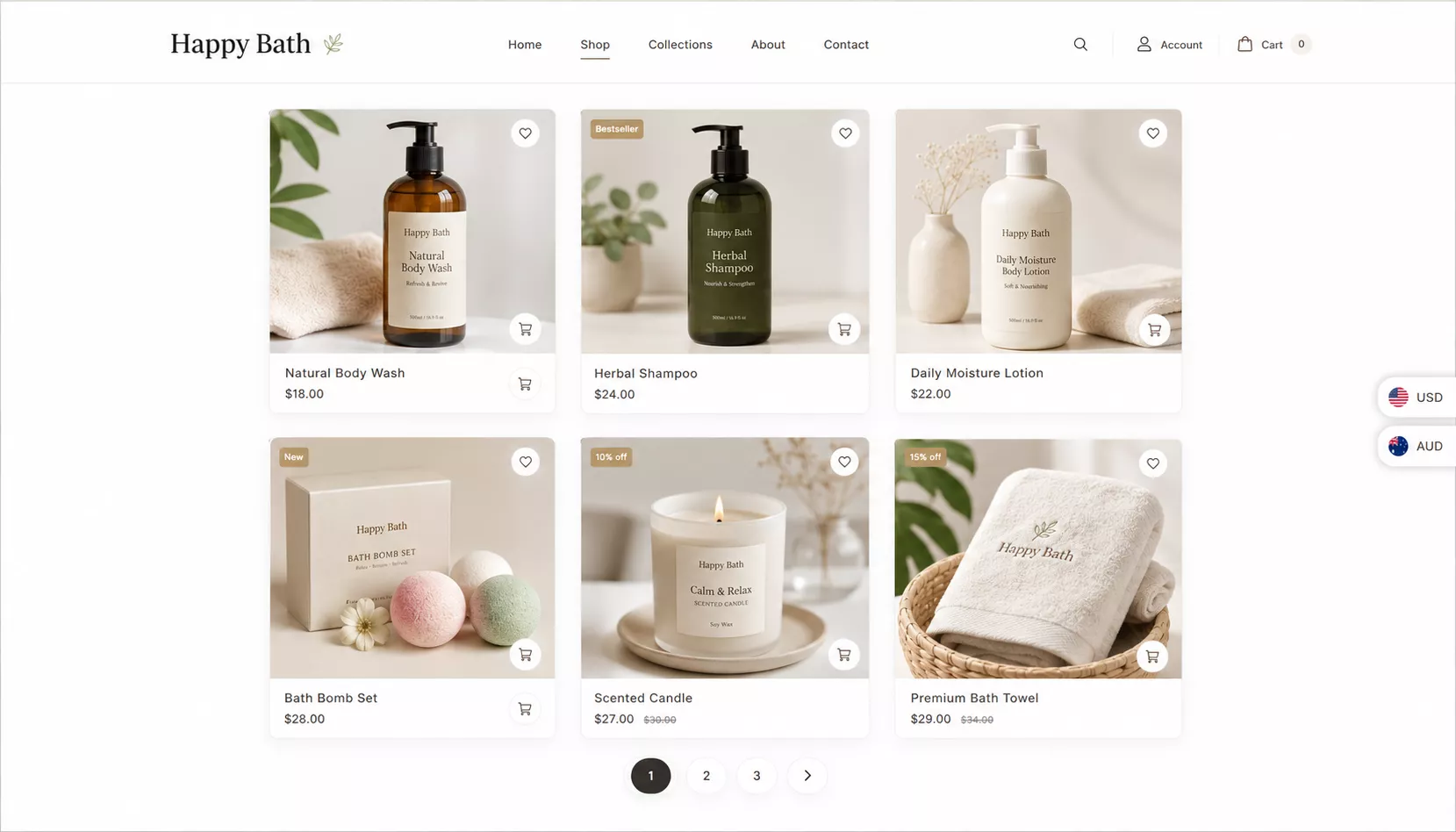
Drop the currency switcher widget into your header, footer, or wherever it fits your layout using Elementor’s drag-and-drop editor. Finally, your store preview will look like this.
Styling It to Match Your Store
Because the switcher is an Elementor widget rather than a bolted-on shortcode, you can control its look the same way you’d style any other element on the page: dropdown or flag-based display, position, colors, and sizing all adjust without touching CSS.
That’s the practical advantage of building currency switching inside the page builder instead of around it. You’re not fighting a plugin’s default styling to make it look like it belongs on your site.
Common Multi-Currency Setup Mistakes to Avoid
- Ignoring cache conflicts. If your host or caching plugin serves a static version of the page, currency switching can silently fail for a chunk of your visitors. Fix: vary your cache by the currency cookie, exclude cart and checkout from caching, and verify in a private window.
- Letting exchange rates go stale. Automatic feeds need a sane update interval. Refreshing rates on every page load adds unnecessary server strain; refreshing them once a month can leave prices noticeably off. Fix: update once or twice daily.
- Mismatched displayed and charged currency. If a shopper sees EUR but gets charged in USD at checkout, that’s a trust problem waiting to become a chargeback. Fix: if your setup is display-only, say so at checkout: ‘Prices shown in EUR. Payment processed in USD.
- Skipping gateway verification. Not every payment processor supports every currency. Confirm this before you announce international pricing, not after a customer’s card gets declined. Fix: run one real test transaction per currency before launch.
Does Multi-Currency Actually Improve Conversions?
If you sell to customers in multiple countries, multi-currency is more than a convenience – it can remove a real barrier to purchase. Showing prices in a shopper’s familiar currency makes your store easier to understand and gives them more confidence about what they’ll pay.
However, multi-currency isn’t a standalone conversion solution. It works best alongside clear shipping costs, familiar payment methods, transparent pricing, and a smooth checkout experience.
So, if international shoppers are an important part of your audience, adding multi-currency support is a simple step that can make your WooCommerce store feel more local, transparent, and easier to buy from.
Wrapping Up
Multi-currency is one of the more straightforward fixes for international cart abandonment, but the setup details matter more than most guides let on. Get clear on whether you need display-only conversion or full checkout-currency support, confirm your payment gateway and caching setup can handle it, and always test a real order in each currency before you call it done.
If your store is already pulling meaningful traffic from outside your home market, this is worth prioritizing this week, not someday.
If you build with Elementor, CoDesigner’s free Currency Switcher module gets you there without adding another plugin to your stack. Download CoDesigner and turn it on today.
Frequently Asked Questions
Can I enable multi-currency in WooCommerce for free?
Yes. CoDesigner’s Currency Switcher lets you enable multi-currency in your WooCommerce store for free, making it easy for customers to view prices in their preferred currency.
Does multi-currency affect WooCommerce checkout?
It depends on the plugin and payment gateway. Some only change displayed prices, while others support checkout in the selected currency.
Will multi-currency work with my theme or page builder?
Most multi-currency plugins are shortcode-based and work with any theme or builder. CoDesigner’s Currency Switcher is an Elementor widget, so it requires Elementor. The upside is that you style it in the builder alongside everything else instead of overriding a plugin’s default CSS.