How to Add WooCommerce Quick View to Your Shop Page (No Code)

Share this content
Copy Link
Share



Design WooCommerce Stores That Convert
-
100+ Widgets
-
15+ Modules
-
150+ Templates
-
At Your Service
Follow us on:


Every extra click between a shopper and an “Add to Cart” button is a chance for them to lose interest, get distracted, or just close the tab. That’s the exact problem quick view solves. If you’ve searched for how to add WooCommerce quick view to your store, you’ve probably run into tutorials that lock you into one specific theme or bury the feature inside a bloated standalone plugin.
There’s a more direct path if you’re already building your store with Elementor. This guide walks through adding quick view without touching a line of code, and just as important, it covers when the feature actually earns its place on your shop page versus when your time is better spent elsewhere.
What Is WooCommerce Quick View (and Who Actually Benefits)
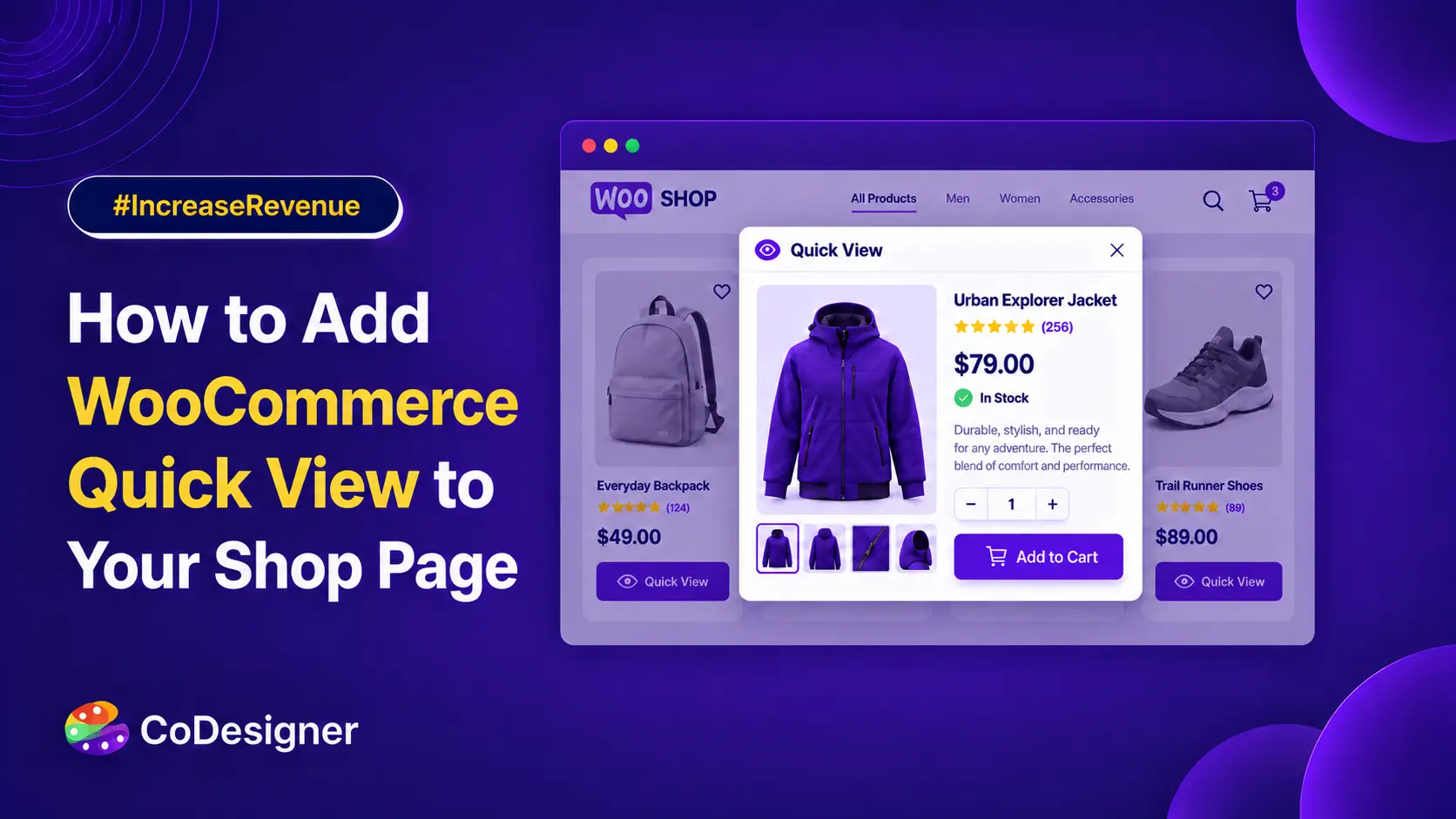
Quick View opens a popup right from the shop page, showing a product’s image, price, short description, and an add-to-cart button. Shoppers get what they need without ever loading the full product page.
Does every store need it, though? Not really.
Baymard Institute’s ecommerce research found that shoppers browsing visually driven products like apparel and home decor benefit most from quick view, since they can judge these items mostly by sight rather than needing detailed specs.
Yet only half of the sites selling this kind of product actually offer the feature, which is a real gap if your catalog fits that description.
That gap is exactly what CoDesigner Pro’s Quick View setting was built for: stores selling things people decide on by looking at them, not by reading a spec sheet.
When Quick View Helps and When It Doesn’t
Quick View works best when shoppers can make a quick decision from a few key details. For some products, it saves time; for others, it adds little value.
(i) Good Fit: Visually Driven Products
Clothing, jewelry, furniture, and beauty products all fall here. A shopper scrolling through a shop page usually wants a bigger image and a confirmed price, and Quick View delivers both in one click instead of a full page load.
(ii) Poor Fit: Spec-Heavy Products
Electronics, tools, and anything sold on technical specs tell a different story. Baymard’s testing on spec-driven sites such as Newegg and Grainger found that quick views add friction without much payoff for these products, since they carry far more attributes than a small popup can reasonably show. Even so, 21 percent of spec-driven sites in Baymard’s benchmark add the feature anyway.
If your store sells laptops or power tools, that research suggests your time is better spent tightening up product list details and comparison features first. If you’re selling shirts, candles, or lamps, quick view is worth the ten minutes it takes to set up, which brings us to the actual walkthrough.
What You Need Before You Start?
Quick View in CoDesigner isn’t a separate widget you drag onto the canvas. It’s a setting tucked inside the shop widget library you’re already using to display products, whether that’s Shop Classic, Shop Standard, or another layout.
Before you start, make sure you have:
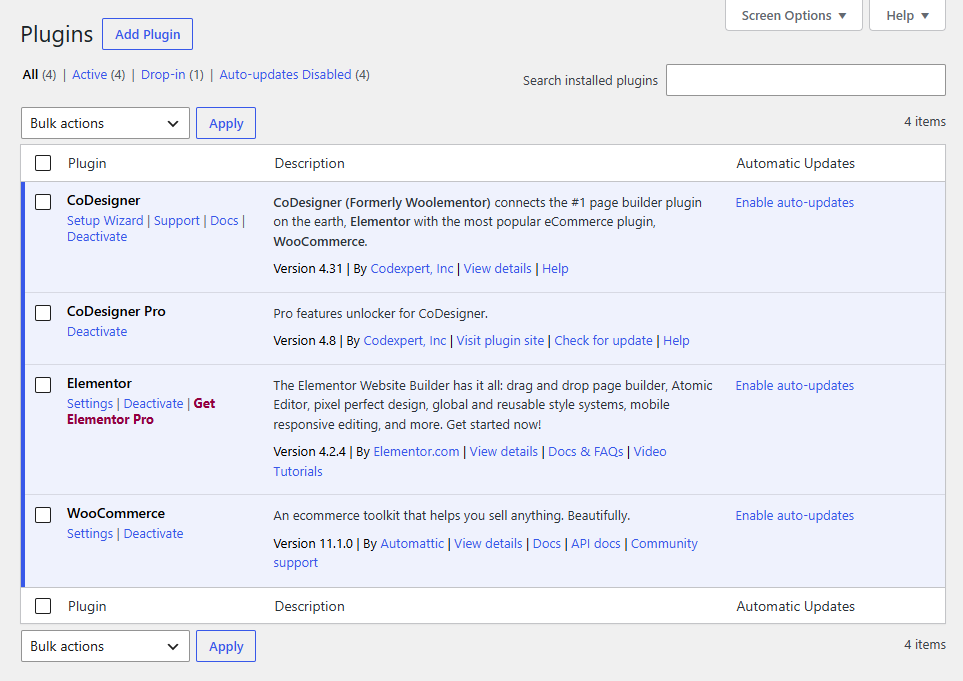
- WooCommerce and Elementor installed and active
- CoDesigner and CoDesigner Pro, since Quick View ships as a Pro-only feature
- A single product template built specifically to serve as the Quick View popup content
That last point is where most people get stuck. Quick View doesn’t come with its own design. It uses a Single Product template you build, so the popup can match your brand instead of looking like a generic lightbox someone bolted on.
It also means you’re not choosing between “Quick View” and “your product page design” as two separate systems to maintain.
Once the template exists, it can double as your Quick View popup and, if you want, the design foundation for your actual product pages too. That’s one less thing to keep in sync every time you update your branding.
How to Add WooCommerce Quick View (Step by Step)
Follow these steps to create a custom Quick View popup for your WooCommerce products using CoDesigner and Elementor.
Step 1: Create a Single Product Template for Quick View
Go to Elementor Templates > Add New in your WordPress dashboard and choose CoDesigner Single Product as the template type.
Name it something clear, like “Quick View Popup,” so it doesn’t get confused with your main product page template later.
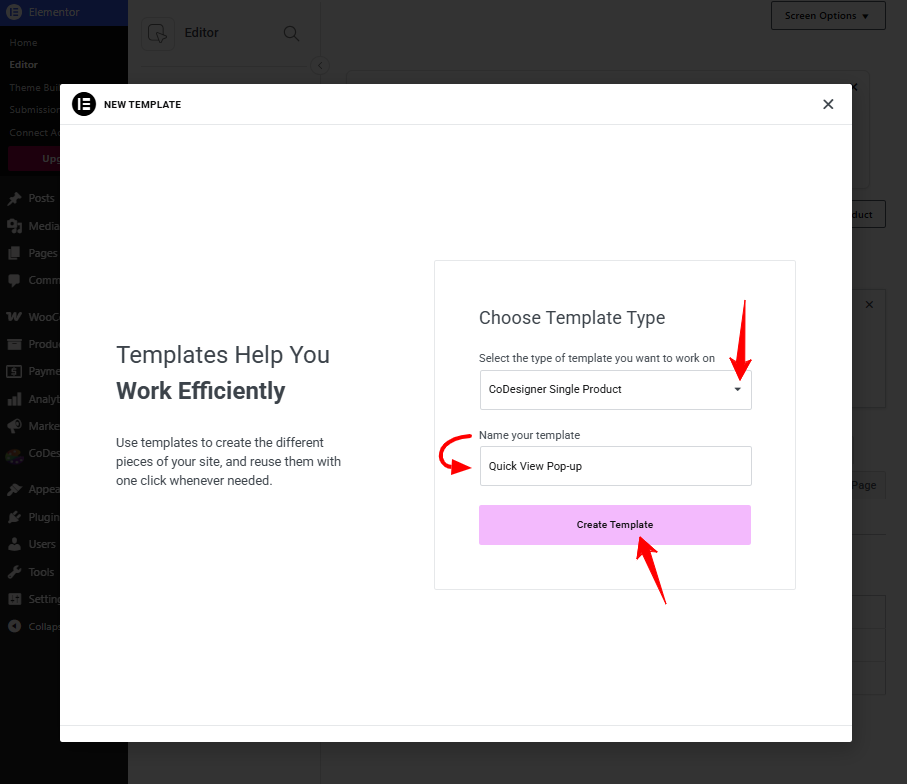
Our single product template guide covers this part in more depth if you want the full walkthrough.
Step 2: Design the Quick View Layout
Open the new template in Elementor and add the widgets you actually want a shopper to see in that split second before they decide.
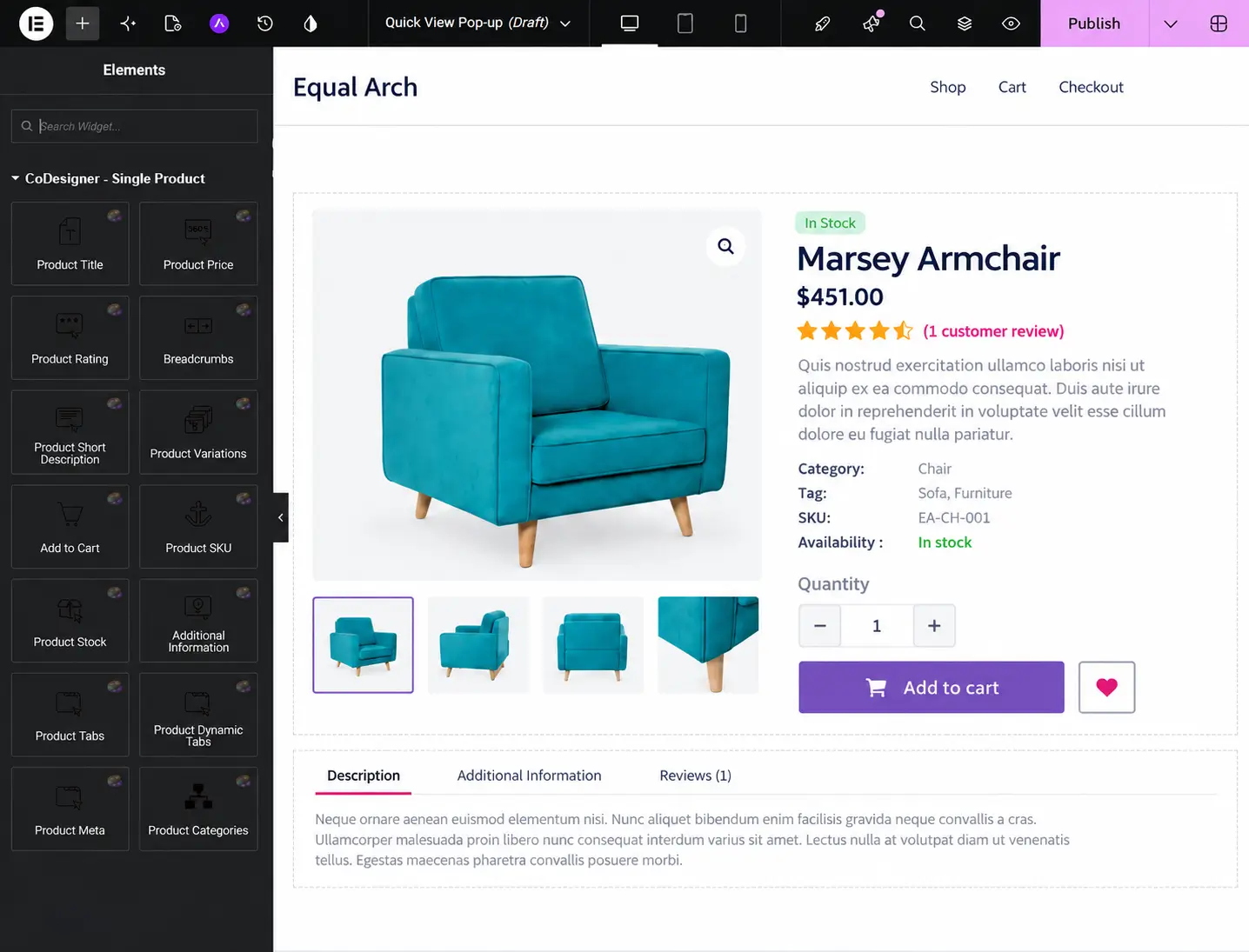
If you sell products with size or color options, include the Product Variation widget too, since shoppers on visually driven sites often use quick view specifically to check whether their size is in stock before committing to a full page visit.
Keep the layout lean. A quick view stuffed with every widget from your full product page, including long descriptions, additional information tabs, or related products, defeats the purpose of a glance. Save those for the actual product page and let the popup do one job well.
Step 3: Assign the Template from the Shop Widget
This is the step that ties everything together. Open the Shop widget in Elementor you’re using on your shop page, go to its Content tab, and expand the Quick View section near the bottom of the panel, right below Pagination.
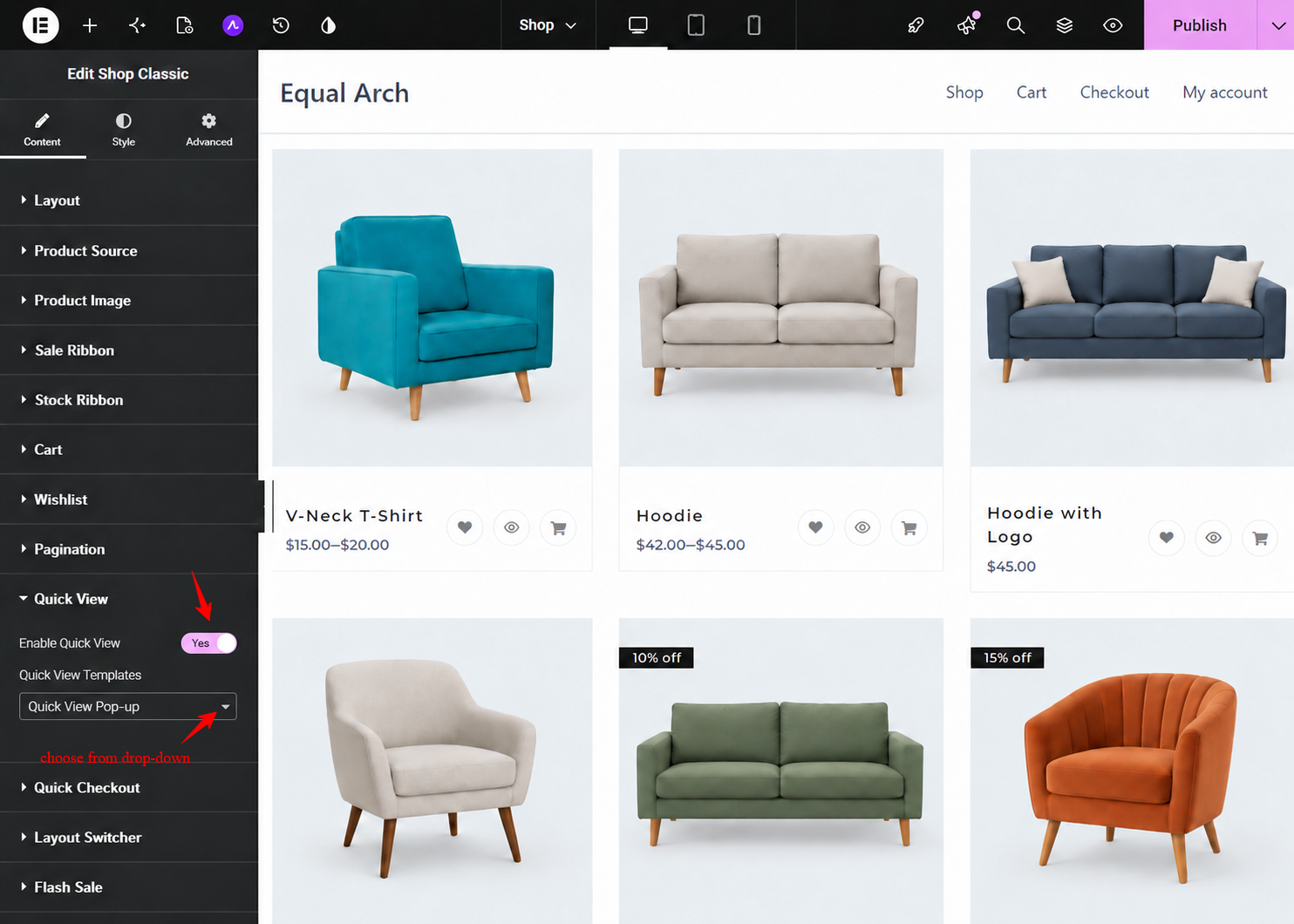
Switch Enable Quick View to Yes, then pick the template you just built from the Quick View Templates dropdown. That one dropdown is what connects your design to every product card on the page.
If you want to disable the WooCommerce Quick View, just disable the button.
Step 4: Preview and Test on Mobile
Save your changes and check the shop page from the front end, not just the editor. Click through a few different products to confirm the popup pulls the right data each time, then check the same flow on a phone.
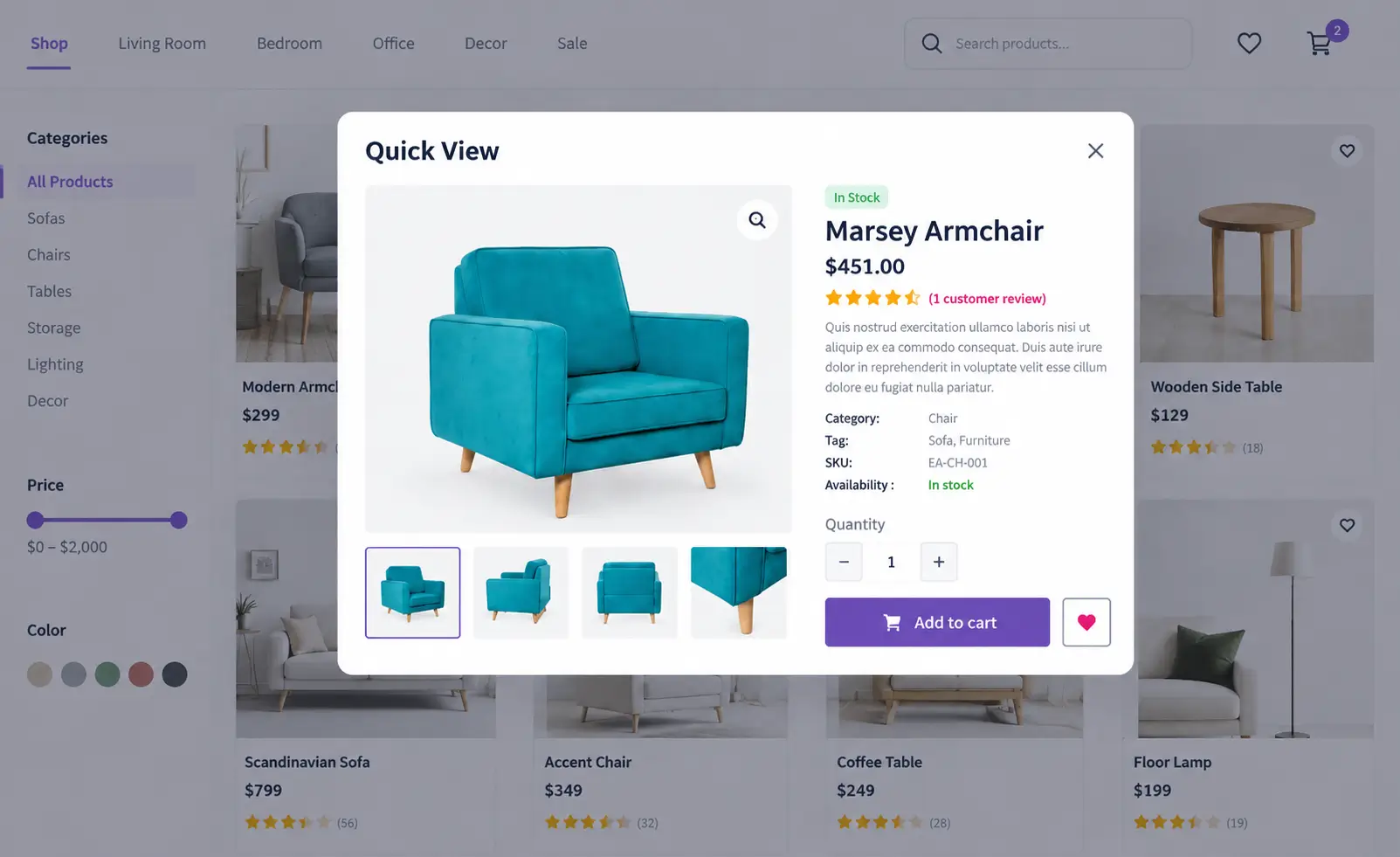
Mobile is where quick view either feels like a shortcut or feels like a trap, so it’s worth the extra minute.
Quick View Design Tips That Actually Improve Conversions
A quick view that technically works isn’t the same as one that helps conversions. Baymard’s optimization research on this exact feature points to two details worth getting right.
First, support the browser’s back button. If a shopper opens quick view and taps back expecting to land on the shop page, that’s what should happen, not a jump to your homepage.
Second, on mobile especially, make sure the shop page is still visible around the edges of the popup so nobody mistakes the quick view for your actual product page. Both are small design choices, but they’re the difference between a feature shoppers trust and one they learn to ignore.
One more thing worth saying plainly: Quick View is not a fix for a shop page that’s already confusing. If your product grid lacks basic information like price or stock status, no popup will paper over that. Get the fundamentals of your shop layout right first, then let Quick View do the smaller job it’s actually good at.
Wrapping Up
Quick View isn’t a feature every store needs, but for shops selling visually driven products, it removes a real point of friction between browsing and buying. The setup itself takes minutes once you know where to look: a Single Product template built for the popup, and a single toggle inside your shop widget’s settings to connect it.
Start with the product type question before the technical one. If your catalog leans visual, build the template, flip the toggle, and test it on a phone before calling it done. If your catalog leans technical, your shop page probably has bigger wins waiting elsewhere.
Frequently Asked Questions (FAQs)
01. Is Quick View available in CoDesigner’s free plan?
No. Quick View is available only in CoDesigner Pro.
02. Does Quick View work on mobile devices?
Yes. Just make sure the popup is easy to close and doesn’t hide the shop page completely.
03. Can I use Quick View with variable products?
Yes. Variation options like size and color can appear if your Single Product template includes the Product Variation widget.
04. Will Quick View slow down my shop page?
Not noticeably if you keep the Quick View template lightweight and focused.
05. Is Quick View the same as Quick Checkout?
No. Quick View shows product details in a popup, while Quick Checkout sends shoppers directly to checkout.