WooCommerce Conversion Rate Optimization: A Complete Guide

Share this content
Copy Link
Share



Design WooCommerce Stores That Convert
-
100+ Widgets
-
15+ Modules
-
150+ Templates
-
At Your Service
Follow us on:


Getting traffic to a WooCommerce store is the part most store owners obsess over. Converting that traffic is the part most of them ignore.
The average WooCommerce store converts somewhere between 2% and 4% of visitors. That means 96 out of every 100 people leave without buying. Most store owners respond to that gap by spending more on ads, rather than asking a more important question: why aren’t the people already visiting the store actually buying?
That is what conversion rate optimization answers. It is not one fix. It is a set of improvements across every stage of your store: your shop page, product pages, cart, checkout, and the experience that follows after someone places an order. Small gains at each stage compound into real revenue, without spending another cent on traffic.
This guide covers what WooCommerce CRO is, why it matters, and exactly how to improve it, from product discovery to post-purchase emails.
Quick Reference: WooCommerce CRO at a Glance
| CRO Area | Impact Level | Priority Fix |
| Measuring and tracking | Foundation | GA4 + funnel visibility before anything else |
| Shop page and discovery | High | Clean layout, filters, fast product finding |
| Product page design | High | Visual hierarchy, clear CTA, reviews above fold |
| Social proof and trust | High | Reviews, live notifications, security signals |
| Checkout experience | Critical | Guest checkout, fewer fields, trust at payment |
| Cart page | Medium–High | Upsells, reassurance, urgency |
| Pricing and offers | Medium–High | Discount strategy, pricing clarity, urgency |
| Payment flexibility | Medium | Multiple gateways, BNPL options |
| Site speed | Critical | 1-second delay = 7% conversion drop |
| Mobile experience | Critical | 80%+ mobile abandonment if not optimized |
| Post-purchase | High (LTV) | Thank You page, email design, retention loop |
| A/B testing | Long-term | Validate before scaling |
What Is WooCommerce Conversion Rate Optimization?

The Definition: In Plain Terms
Conversion rate optimization is the structured process of increasing the percentage of store visitors who complete a desired action. In WooCommerce, that usually means completing a purchase, but it also includes micro-conversions: adding a product to the cart, saving an item to a wishlist, or signing up for an email list.
The formula is straightforward. Divide the number of conversions by total visitors, multiply by 100, and you have your conversion rate. If 50 people out of 2,000 monthly visitors complete a purchase, your conversion rate is 2.5%.
CRO does not require more traffic. It requires making better use of the traffic you already have. That is what makes it one of the highest-return investments a WooCommerce store owner can make.
What Counts as a Good WooCommerce Conversion Rate?
The average WooCommerce store converts between 2% and 4% of visitors. High-performing stores with optimized checkout flows, fast mobile performance, and strong trust signals regularly exceed that range.
The benchmark shifts significantly by niche and price point. Fashion stores tend to see lower abandonment (around 68%) compared to luxury or high-ticket categories, where hesitation is naturally higher. Traffic source distorts the number, too: email traffic converts far higher than cold paid social.
The most practical answer to this question is also the most honest one. A good conversion rate is better than last month’s.
Why Your WooCommerce Store Needs CRO
The Real Cost of Poor Conversions
Most store owners treat low conversions as a traffic problem. They pour budget into ads, SEO, and social, but the funnel they’re sending people into is full of friction. Fixing that funnel is where CRO starts.
Consider the math. A store generating $10,000 per month at a 2% conversion rate would generate $20,000 at 4%, with the same traffic, the same products, and the same ad spend. Research estimates that $260 billion in ecommerce revenue is recoverable annually through better checkout design alone. That’s not a marginal opportunity.
Where Buyers Are Leaking Out of Your Funnel
The customer journey in WooCommerce follows a clear path: shop page, product page, cart, checkout, and post-purchase confirmation. Every stage has its own friction patterns and its own fixes.
Global cart abandonment rates sit above 70%, meaning more than two-thirds of people who add something to their cart never finish buying. 18% abandon because the checkout is too complicated, and 19% leave because they’re forced to create an account before they can pay. These are not design opinions. They are measurable drop-off points with clear, actionable solutions.
CRO vs Spending More on Traffic
Driving more traffic to an underperforming funnel doesn’t fix the funnel. It amplifies the leaks. A store converting at 1.5% that spends twice as much on ads gets twice the volume, but still converts poorly. A store that lifts its rate from 1.5% to 3% on the same traffic doubles revenue without touching acquisition spend.
CRO multiplies the return on traffic you’re already paying for. That framing matters before diving into tactics.
WooCommerce Conversion Rate Optimization | 12 Proven Methods
Getting traffic is only half the battle. Learn how to convert more visitors into customers with these proven strategies.
Method 1: Measure First, Then Optimize
Set Up Proper WooCommerce Conversion Tracking
You cannot improve what you don’t measure. Before touching a single layout or button, get proper tracking in place.
GA4 with enhanced ecommerce tracking enabled is the non-negotiable starting point. It gives you visibility into the full funnel: add-to-cart rate, checkout initiation rate, checkout completion rate, and cart abandonment rate, all at the page level. MonsterInsights simplifies this setup for WordPress stores without requiring manual code.
Find Your Highest-Traffic, Lowest-Converting Pages
Once tracking is live, look for the pages doing the most damage. A product page receiving 2,000 visits per month but converting below 0.5% should be your first priority, not pages that are already performing well.
Pair your GA4 funnel data with heatmaps and session recordings. Hotjar and Microsoft Clarity are both solid options that show where visitors click, how far they scroll, and where they exit. Quantitative data tells you what is happening. Qualitative data tells you why.
Build a CRO Roadmap from the Data
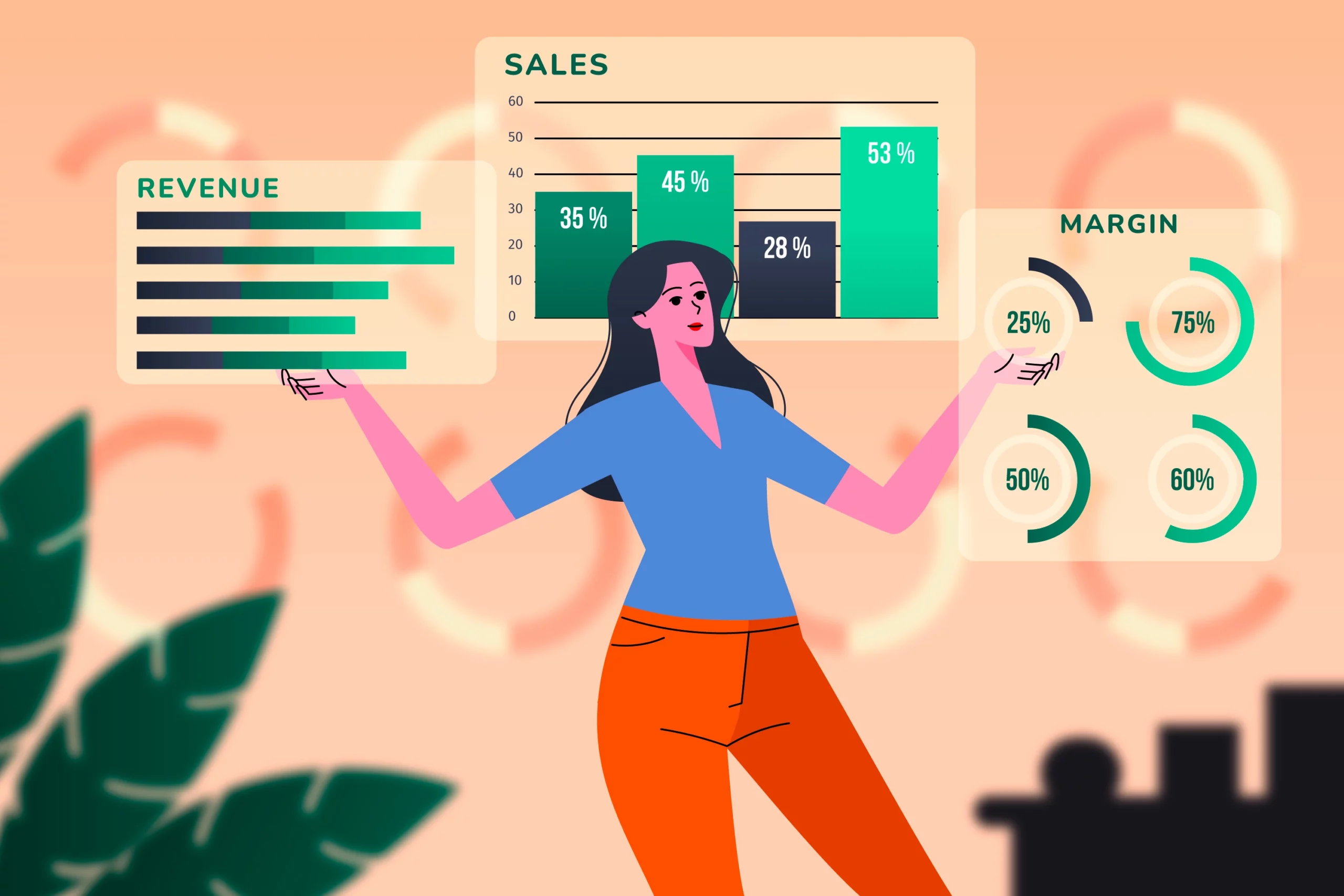
Don’t try to fix everything at once. Prioritize by expected impact. Checkout fixes like enabling guest checkout, reducing form fields, and adding trust signals typically show results within 7 to 14 days. Product page and social proof changes compound over 60 to 90 days as reviews accumulate and layouts settle into tested configurations.
Treat CRO as a quarterly discipline, not a one-time sprint. Every improvement changes user behavior, and the ceiling tends to move as the floor rises.
Method 2: Optimize Your WooCommerce Shop Page for Product Discovery
First Impressions and Store Layout
Visitors judge a WooCommerce store in seconds. A cluttered shop page with too many competing categories, no clear hierarchy, and slow-loading images sends people back to Google before they’ve seen a single product.
A high-converting shop page keeps the layout clean, categories logical, and the search bar visible. Products appearing above the fold for new visitors is not a nice-to-have; it’s a conversion fundamental. CoDesigner and Elementor let you redesign your WooCommerce shop page layout entirely without touching theme files or writing code.
Product Filtering and Navigation That Reduces Friction
When visitors can’t find what they’re looking for quickly, they leave. AJAX-powered product filtering by price, category, attribute, and availability, without triggering a page reload, removes that friction directly. The easier it is to find a specific product, the closer that visitor is to buying one.
CoDesigner’s Elementor WooCommerce product filter handles this at the design layer. Visitors narrow down options intuitively, without waiting for page refreshes.
Related Products and Cross-Sell Placement on the Shop Page
Dead ends kill conversions. A visitor who lands on one product, doesn’t connect with it, and finds nothing nearby will leave. Strategically placed related products keep them browsing and surface alternatives before they bounce.
This applies at the shop page level, not only on product pages themselves. Adding related products in WooCommerce at the category level ensures every visitor has somewhere relevant to go next.
Method 3: Build Product Pages That Actually Persuade
Visual Hierarchy: What Goes Where and Why
The product page is where most purchase decisions are made. The layout sequence that consistently converts well runs: product image, price, CTA, reviews, then description, in that order. Buyers want to know what it looks like, what it costs, and what other people think before they read a single word of copy.
High-quality images with multiple angles, lifestyle context, and zoom functionality reduce the uncertainty that causes hesitation. Video demonstrations, where relevant, give buyers what a photo cannot. CoDesigner’s single product page builder lets you build this hierarchy through Elementor, with no custom code or developer required.
Write Product Descriptions for Decision-Making, Not Search Engines
Most WooCommerce product descriptions are written for Google. That’s a mistake. The person reading it has already found the page. They need to be convinced to buy, not to arrive.
Effective descriptions lead with benefits, not features. Short paragraphs, scannable bullet points, and direct answers to the questions a hesitant buyer might have: delivery time, sizing, materials, compatibility. Anything left unanswered is a reason to leave the page.
Add an FAQ Section to Product Pages
Product page FAQs do two things at once. They reduce pre-purchase hesitation for new buyers, and they cut down on repetitive support inquiries. Questions like “Does this fit X?” or “What’s your return policy?” answered directly on the page remove the final friction point before someone clicks Add to Cart.
CoDesigner lets you add a styled, expandable FAQ accordion to WooCommerce product pages through Elementor, with no coding required and easy to update as questions evolve.
Wishlist Functionality as a Soft Conversion
Not every visitor is ready to buy today. A wishlist captures that intent rather than losing it entirely. When a shopper saves a product, they’re signaling genuine interest. That signal becomes a re-engagement trigger for email recovery, return visits, or session continuity on their next visit.
CoDesigner’s wishlist module gives you full control over layout, position, and style. If you haven’t added one yet, creating a wishlist for your WooCommerce store is one of the lower-effort improvements with a long tail of re-engagement value.
Method 4: Use Social Proof and Trust Signals Everywhere
Reviews: Placement Matters as Much as the Review Itself
92% of consumers read reviews before making a purchase decision, and displaying customer reviews can boost ecommerce conversion rates by up to 67%. Those numbers are widely cited for a reason: reviews are the closest thing to a guarantee that an online shopper can get.
What most stores get wrong is placement. Reviews buried below a long product description don’t convert the way reviews above the fold do. Customer photos in reviews outperform text-only reviews meaningfully: 60% of shoppers say they would choose a product with 10 photo reviews over one with 200 text-only reviews. If your review strategy relies on the default WooCommerce star-and-text system, it’s worth upgrading.
Live Sales Notifications and Activity Indicators
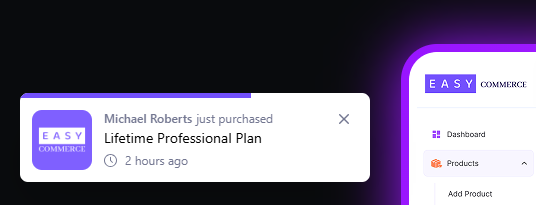
Real-time purchase notifications create social validation without manufactured urgency. A message showing “Someone in Dublin just bought this” or “12 people viewed this in the last hour” tells the visitor that other real people are interested and buying. That context is genuinely useful, not manipulative.
CoDesigner’s live sales notification widget for WooCommerce is configurable by position, style, and trigger conditions. Used on product pages and the shop page, it adds a layer of social proof that works passively while visitors browse.
Trust Signals at Every Stage, Not Just Checkout
70% of shoppers actively look for trust signals before completing a purchase. Most WooCommerce stores put those signals in the footer and consider the job done. That’s not where buyers are looking when they hesitate.
Trust signals belong at the point of decision: security badges and payment icons near the Add to Cart button on product pages, return policy language adjacent to the checkout button, and SSL indicators visible during payment entry. Full trust signal implementation produces a 20–35% improvement in conversion rates. Getting that full lift requires placing them at the right moments in the journey, not just on the right pages. CoDesigner’s WooCommerce checkout trust signal widgets give you precise control over where each element appears.
Method 5: Fix Your Checkout (The Highest-Impact Change in WooCommerce CRO)
Remove Friction Before It Removes Your Customer
The checkout is where the most recoverable revenue is lost. According to Baymard, 19% of shoppers abandon because they’re forced to create an account, and 18% leave because the checkout process is too complicated. Both are fixable today.
Guest checkout should be enabled by default. Account creation can be offered after the purchase, not before it. Form fields should be reduced to the minimum required. Every extra field gives a hesitant buyer a reason to stop. A visible progress indicator reduces checkout anxiety by letting customers know exactly how many steps remain.
One-Page and Quick Checkout Options
Multi-step checkout creates natural pause points where buyers reconsider. Collapsing the process into one page, or bypassing the cart entirely for single-product purchases, removes those pauses before they become exits.
CoDesigner supports both approaches. The WooCommerce one-page checkout keeps everything in a single view, while the quick checkout button lets customers go straight from a product page to payment without navigating through a full cart.
Build a Custom WooCommerce Checkout with Elementor
WooCommerce’s default checkout is functional. It is not persuasive. The layout is fixed, trust signal placement is limited, and there’s no room to reinforce the purchase decision at the moment of payment.
CoDesigner lets you rebuild the WooCommerce checkout page in Elementor: restructure the layout, position trust signals where they matter most, style every element, and create the kind of clean, confidence-building experience that a Shopify-style checkout delivers, inside your WooCommerce store.
Custom Checkout Fields That Improve Rather Than Complicate
The right custom fields increase order value and reduce post-purchase friction. Delivery date selectors, gift message inputs, and special instruction fields serve genuine buyer needs. The wrong fields, meaning anything a customer hasn’t asked for, increase abandonment.
CoDesigner lets you add custom fields to your WooCommerce checkout without code. The question to ask before adding any field: does this help the buyer, or does it help the store admin? Only the former belongs at checkout.
Method 6: Turn Your Cart Page Into a Selling Tool
Design the Cart for Confidence and Momentum
The default WooCommerce cart page shows products, quantities, and a checkout button. That’s it. For a page that sits at one of the highest purchase-intent moments in the entire funnel, that’s a significant missed opportunity.
A cart page designed for conversion includes an order summary, a delivery estimate, a visible free shipping threshold indicator, a return policy reminder, and a security badge near the checkout button. CoDesigner lets you redesign your WooCommerce cart page through Elementor, with row layout, side-by-side layout, and full styling control over every element.
Upsells and Cross-Sells on the Cart Page
A visitor who has already added a product to their cart has committed to buying. That’s exactly the right moment for a relevant product suggestion. Cart-page cross-sells and “frequently bought together” placements tend to outperform the same placements on product pages precisely because purchase intent is higher at this point.
Keep suggestions relevant. Irrelevant upsells create distraction, not revenue. They also signal that the recommendation is automated, not curated.
Urgency Signals Without Dark Patterns
Low stock indicators, shipping cutoff timers, and time-limited offers create genuine urgency when they’re accurate. Used honestly, they reduce the “I’ll come back later” exit that rarely materializes into a return visit.
The line matters here. Fake countdown timers and manufactured scarcity damage trust the moment a buyer notices them. Experienced online shoppers notice quickly. Real urgency signals help committed buyers make decisions they were already close to making.
Method 7: Use Pricing Strategy and Discounts to Remove Hesitation
Pricing Clarity and Comparison Tables
Price anchoring, which means showing a crossed-out original price next to a discounted one, frames the deal before the buyer has to justify it internally. It’s one of the most consistently effective tactics in retail because it provides a reference point that makes the current price feel like a clear win.
For stores selling products with tiered plans or multiple variants, pricing tables eliminate the comparison friction that sends buyers to open other tabs and lose the thread entirely. CoDesigner’s pricing table builder for WooCommerce makes it possible to design and structure plan comparison pages through Elementor, without touching a line of code.
Discount Codes and Coupon Strategy
Discount codes applied automatically at checkout convert better than codes a buyer has to find, copy, and enter manually. That friction is small but real, and it causes a measurable drop-off, especially on mobile, where switching between apps to copy a code is genuinely annoying.
Exit-intent coupons, first-order incentives, and cart-value thresholds serve different CRO purposes, but all of them work best when they reduce steps rather than add them. The guide to creating discount codes in WooCommerce covers the mechanics; the strategy behind when and how to deploy them is where the CRO impact actually comes from.
Free Shipping Thresholds as a Conversion Lever
Unexpected shipping costs are the single biggest abandonment trigger across ecommerce, cited by roughly 41% of shoppers as their reason for leaving. The fix is not simply offering free shipping. It’s making the threshold visible early, on product pages and prominently inside the cart.
A message like “Add $12 more for free shipping” increases average order value and reduces abandonment simultaneously. That’s a rare CRO fix that improves two metrics at once without requiring any design work.
Method 8: Expand Payment Options to Reduce Drop-Off
Give Buyers Their Preferred Way to Pay
A buyer who reaches checkout and doesn’t find their preferred payment method will leave. That drop-off is silent. It won’t surface as a checkout complaint, but it shows up clearly in abandonment data.
Cards, PayPal, Apple Pay, Google Pay, and the most relevant local gateways for your audience should all be available and visible. The best WooCommerce payment gateway plugins vary by audience and geography. The underlying point is consistent: every payment friction point at checkout is a preventable lost sale.
Buy Now, Pay Later (BNPL) for Higher-Ticket Products
BNPL providers like Klarna, Afterpay, and Affirm reduce the sticker shock that makes higher-priced products convert poorly. The buyer doesn’t need to justify the full amount upfront, which removes a significant psychological barrier without touching your price.
Stores offering BNPL options report up to a 20% increase in conversion rate and an 85% lift in average order value. For any WooCommerce store selling products above $50, BNPL is worth evaluating as a standard checkout option, not a last resort.
Method 9: Site Speed Is a CRO Problem, Not Just a Technical One
The Numbers Behind Slow WooCommerce Stores
A one-second delay in page load time reduces conversions by 7%. Pages taking longer than 3 seconds to load lose approximately half their mobile visitors before those visitors ever see a product. Those are not performance benchmarks. They are revenue benchmarks.
Core Web Vitals (LCP, INP, CLS) are Google’s signals for page experience quality. They affect search rankings and buyer experience at the same time. A slow WooCommerce store doesn’t just lose conversions; it loses the organic traffic that would have generated those conversions in the first place.
Practical Speed Fixes for WooCommerce Store Owners
The most common WooCommerce-specific slowdowns are unoptimized product images, too many plugins running simultaneously, cart fragment loading on every page, and low-quality hosting. Each has a practical fix.
Compress images and switch to WebP format: this alone typically produces a 40–60% file size reduction with no visible quality loss. Install a caching plugin: WP Rocket and W3 Total Cache are both reliable options. Choose a lightweight Elementor-compatible theme like Astra or Hello Elementor. Invest in quality managed WordPress hosting, as it is the foundation every other performance fix depends on. Run your store through Google PageSpeed Insights before optimizing anything, so you’re addressing your actual bottlenecks rather than the most common ones.
Method 10: Mobile Experience Is Where Most WooCommerce Stores Lose Sales
Why Mobile Abandonment Is Your Biggest Untapped Problem
More than 70% of ecommerce traffic comes from mobile devices. Mobile cart abandonment rates sit around 80%, roughly 10 percentage points higher than desktop. That gap is almost entirely explained by UX and design failures, not by mobile users being less willing to buy.
Small screens create friction that desktop layouts never encounter: keyboard input at checkout, tap targets that require precision, navigation menus that assume a mouse cursor, and slow-loading galleries that don’t account for mobile network conditions. Every one of those friction points is fixable by any store owner using Elementor.
Mobile-First WooCommerce Design Principles
On mobile product pages, a sticky Add to Cart button, visible without scrolling at all times, is one of the highest-impact changes you can make. The button should always be accessible regardless of how far the visitor has scrolled through the description.
Simplified navigation with touch-friendly filters, autofill-friendly checkout forms, and wallet payment options (Apple Pay, Google Pay) appearing first in the payment list all reduce mobile checkout friction significantly. CoDesigner’s Elementor-based layouts are built to adapt cleanly to mobile without requiring a separate mobile theme or any custom CSS.
Method 11: Post-Purchase CRO, The Revenue Stage Most Stores Ignore
The Thank You Page Is Not a Receipt
The default WooCommerce Thank You page shows an order confirmation and stops there. That’s a missed opportunity at the exact moment when buyer trust is at its highest point in the entire customer journey.
A well-designed Thank You page extends the relationship. Related products, a loyalty program introduction, a referral incentive, a next-purchase discount, or an invitation to follow on social: each of these continues the conversation past the transaction. CoDesigner’s custom Thank You page builder lets you design this experience through Elementor. The WooCommerce Thank You page setup guide covers the full process.
WooCommerce Transactional Emails as a Conversion Channel
Default WooCommerce transactional emails are plain text in a basic template. They confirm the order and nothing else. That’s a conversion channel being left completely unused.
A well-designed order confirmation email reinforces purchase confidence, reduces buyer’s remorse, and plants the seed for the next order. The brand experience that started on your product page shouldn’t evaporate the moment someone hits pay. CoDesigner’s built-in email designer lets you design WooCommerce transactional emails in Elementor, covering layout, styling, and content across every system-generated email WooCommerce sends. The best WooCommerce email customizer plugins roundup is also worth reviewing if you want to compare your options.
Bridge to Retention: Converting Once Is Not Enough
Post-purchase CRO connects directly to long-term retention. The first purchase is the hardest and most expensive one. Every subsequent purchase costs a fraction of the original acquisition cost. Building a system that brings buyers back through loyalty programs, re-engagement emails, and wishlist recovery is where the compounding value of CRO really shows up.
For a complete breakdown of how to retain WooCommerce customers after the first sale, the customer retention strategies for WooCommerce guide covers the full picture.
Method 12: Test, Iterate, and Never Stop Optimizing
A/B Testing Basics for WooCommerce Store Owners
A/B testing is the difference between CRO based on data and CRO based on gut feel. Start with the changes most likely to move the needle: CTA button copy and color, headline text on key product pages, checkout field order, and trust badge placement.
Test one variable at a time. Wait for statistical significance before drawing conclusions. Implement the winner and move to the next test. Tools worth considering: Nelio A/B Testing integrates directly with WooCommerce and is well-suited for non-technical users. GA4’s built-in experimentation features work as a workable alternative for stores already running enhanced ecommerce tracking.
CRO Is a Cycle, Not a Checklist
Every improvement changes user behavior. What works today may not be the ceiling. It’s the new floor. The stores consistently breaking past the 2–4% benchmark are not the ones that ran one big CRO project. They’re the ones running a monthly review cycle: analyze funnel drop-off, run one test, implement the winner, and move forward.
A quarterly review cadence is realistic for most WooCommerce store owners. Weekly obsession over data that hasn’t had time to accumulate leads to poor decisions. Monthly action on clear signals leads to compound gains that are visible at the end of every quarter.
Conclusion
WooCommerce CRO is a funnel problem. Every stage, from the shop page a first-time visitor lands on to the confirmation email they receive after placing an order, either adds friction or removes it.
Start where the data points are, not where it feels most interesting to work. For most stores, that means measurement first, then checkout. Checkout friction fixes deliver faster returns than almost any other CRO investment, and they’re fully achievable without developer help.
The stores breaking past the 2–4% benchmark are not doing one thing right. They’re doing all of these things incrementally, testing what works, building on it, and treating optimization as a permanent part of running the store, not a project with an end date.
Audit your checkout funnel today. Find the biggest drop-off in your data, fix it, measure the result, and move to the next one.
Frequently Asked Questions About WooCommerce Conversion Rate Optimization
What is a good conversion rate for a WooCommerce store?
Most WooCommerce stores convert between 2% and 4%. However, the ideal rate depends on your industry, product pricing, and traffic sources. Focus on improving your conversion rate over time rather than chasing a specific benchmark.
How do I track my WooCommerce conversion rate?
The easiest way is to use Google Analytics 4 (GA4) with ecommerce tracking enabled. You can also use tools like MonsterInsights, Hotjar, or Microsoft Clarity to understand how visitors interact with your store and where they drop off.
Can I improve WooCommerce conversions without a developer?
Yes. Many conversion improvements, such as optimizing product pages, simplifying checkout, adding trust signals, and creating better landing pages, can be done using no-code tools like Elementor.
How long does WooCommerce CRO take to show results?
Simple changes, such as streamlining checkout or adding trust badges, can show results within a few weeks. Larger optimizations usually require 1–3 months of testing and analysis before you see meaningful improvements.